In today’s DevOps world, Docker is the go-to tool for creating portable, containerized environments that adapt to fast-changing systems. But if you’ve tried launching intra-mart Accel Platform (iAP) with a simple docker-compose.yaml, you have likely run into major roadblocks.
Why iAP Isn’t Just docker-compose up
Three main challenges make a seamless out-of-the-box setup difficult:
- Customized Middleware Requirements: iAP relies on a specially tuned Resin server. A generic public Resin image cannot be used; instead, the customized server version must be manually downloaded from the official intra‑mart product repository.
- IM‑Juggling Dependency: To manage core modules, standard applications, and optional features (such as IMBox or IM‑ContentSearch), iAP requires a separate tool called IM‑Juggling. Since IM‑Juggling is needed to build the application WAR file, developers cannot simply pull a pre‑configured, fully functional platform from a public repository.
- Version Coupling: High dependency between
imart.warmodules, the JDK, and specific middleware versions creates a maintenance bottleneck. Upgrading iAP or recomposingimart.warrequires manual, error-prone adjustments to configuration files and Docker definitions.
In this article, we are going to walk you through the essential steps, workarounds, and best practices needed to successfully containerize iAP and streamline your development workflow. Let’s dive in!
Following diagram shows the life cycle of iAP setup without using docker.
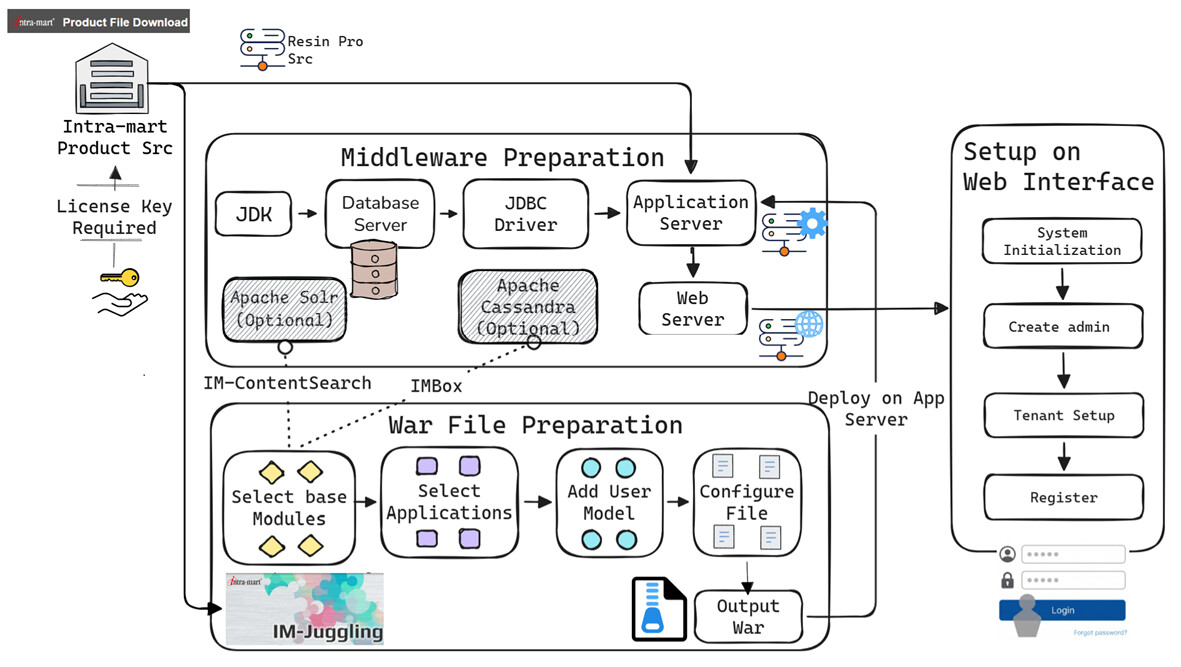
To future‑proof our containerization setup against regular iAP upgrades and shifting middleware version support, we adopt a specialized Docker architecture that cleanly decouples code, configuration, and infrastructure.
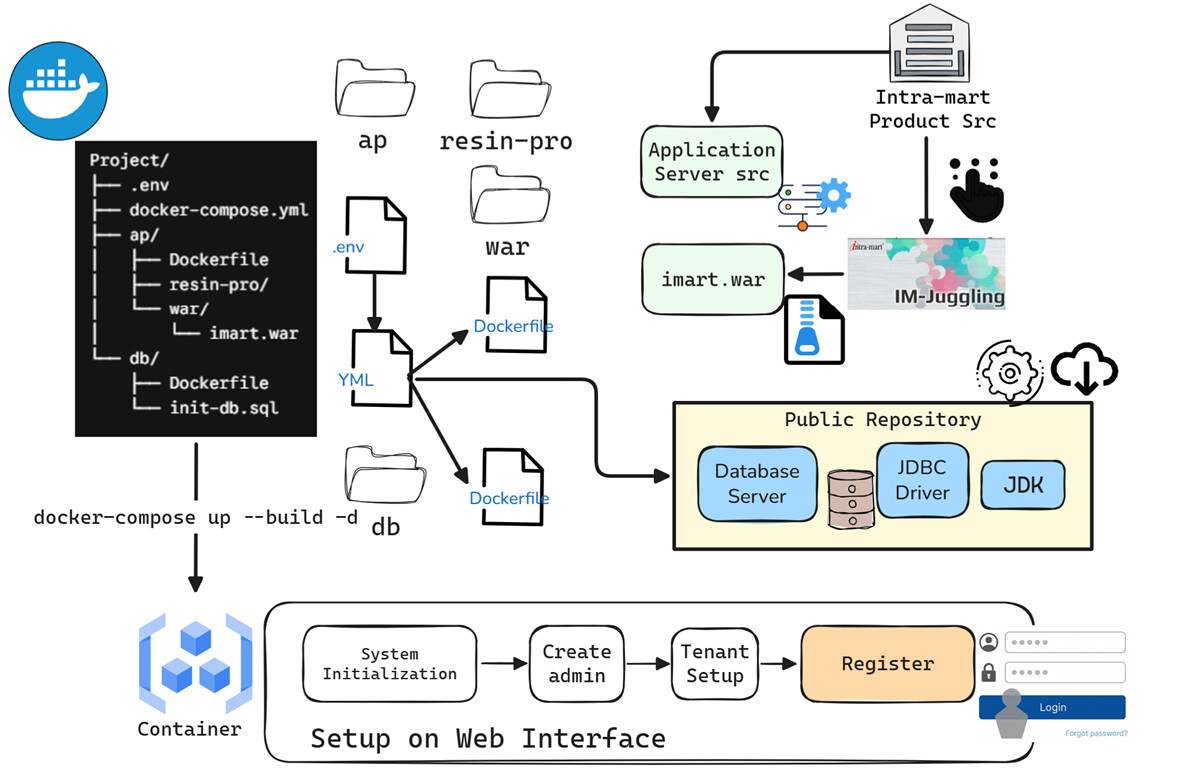
We rely on three key configuration files—.env, docker-compose.yml, and Dockerfile—to streamline both manual and automated lifecycles while ensuring flexibility for future tech‑stack adjustments. .env plays the role of control panel and define the default folder name of application server.
RESIN_SERVER_NAME=resin-pro
Next, the docker-compose.yml file reads this definition and passes it down to the build context as a build argument.
services:
  ap:
    build:
      context: ./ap  # The build context is localized to the ./ap directory
      args:
        arg_resin_server_name : ${RESIN_SERVER_NAME} # Becomes "resin-pro"
Inside the Dockerfile (located under the ap folder), we accept this build environment and use it to dynamically copy the correct Resin source from your local machine into to the container image:
ENV RESIN_SERVER_NAME="${arg_resin_server_name}"
ENV RESIN_HOME="${arg_resin_home}"
RUN export RESIN_HOME=${RESIN_HOME}

COPY "./${RESIN_SERVER_NAME}/" "$RESIN_HOME"
The beauty of this architecture lies in its maintenance simplicity. When a new, specially tuned resin‑pro is released, you can keep the older version for reference by appending a suffix such as -2025Spring to the existing folder and drop the new source directly into the main resin‑pro folder. The setup can then be updated simply by rerunning docker-compose, without rewriting configuration files across multiple locations. Alternatively, you can just update the RESIN_SERVER_NAME value in .env to point to the new folder.
Another advantage of this setup is using the .env file to centrally manage external dependencies, such as the JDBC driver:
JDBC_FILE_NAME=postgresql-42.7.7.jar
JDBC_DOWNLOAD_URL=https://jdbc.postgresql.org/download
We can simultaneously leverage the Dockerfile inside the db directory to automate pgvector extension support for PostgreSQL. This makes future database upgrades incredibly straightforward:
FROM pgvector/pgvector:pg17
COPY ./init-db.sql /docker-entrypoint-initdb.d/01-init-vector.sql
RUN chmod 644 /docker-entrypoint-initdb.d/01-init-vector.sql
Streamlining WAR Deployment
To avoid manually uploading and deploying imart.war through the resin‑admin web interface—which is slower and introduces security risks—we map the local host directory containing the deployment artifact using a bind mount in docker-compose.yml:
volumes:
  - ./ap/war:/war
This allows hassle‑free deployment with a single Docker command that executes a rapid internal file copy:
docker compose exec ap cp /war/imart.war /ap-server/webapps/
To update or replace the application, simply place the new imart.war file into your local ap/war folder and rerun the cp command. Because the directory is actively mounted, the container instantly recognizes the new file, allowing Resin to trigger an internal hot-redeploy. There is no need to run docker compose down or restart the containers to update the war archive.
I’ve packaged these base configuration files into a ZIP archive.
project.zip (11.4 KB)
You can adjust them to match different middleware versions required by targeted iAP release, add your own resin-pro source code and drop in your imart.war file to test the setup. For the official setup guides, please refer to the intra-mart Quick Setup Guide.